
This page is also included in the download package.
See
the
LipSync
Tutorial
for a
typical session.
LipSync
LipSync is a mouth position sequencer for lip syncing to a Quicktime soundtrack in Macromedia Director. A Director authoring Xtra (SyncPlug) incorporates the sync data into a target Director animation. The Xtra is only required during authoring and not during delivery.
Who it's for
Anyone wanting to create Macromedia Director animations with accurate and reliable lip syncing.
Web delivery
With Director 6.0.1 and Shockwave 6.0.1, it is now possible to include Quicktime in your Shockwave movies. This means that LipSync syncing can be delivered on the Web as Shockwave.
Conflicts
Uses fileIO Xtra which can be troubled by Macintosh Easy Open. If you get an error message about not being able to translate the file when opening a QT file use the Macintosh Easy Open control panel to turn Automatic Document Translation off.
How it works
LipSync is a Director application that provides a number of tools to help you assign mouth positions to "frames" of a Quicktime soundtrack.
You work with each spoken word separately. You first type the words into a text field.
You can then use a number of tools to find the start and end frame of each word. Then you can start assigning mouth positions from a palette of nine standard positions.
Individual frames can be deleted and inserted and the whole word can be nudged earlier or later in the soundtrack.
Single words or the whole soundtrack can be previewed to check the mouth assignments.
All the information collected can be saved as a "sync file". This file is used by the SyncPlug Xtra to incorporate the sync data into your Director animation.
Modes
LipSync
has 2 distinct modes. In
each mode the scrolling text box has a different
function. Edit
Text - the text box is editable - you can play the
soundtrack - you type in the words to be synced, one per
line. Select
Words - clicking on a word in the text box loads that
word into the word editor - lots of tools to help you locate
word start and end and to assign mouth positions and preview
words spoken.
The tools
There
are 5 multi function tools: The
Text Box - available in both modes Quicktime
Tool - available in both modes Previewer
- available in "select word" mode Mouth
Palette - available in "select word" mode Word
Editor - available in "select word" mode
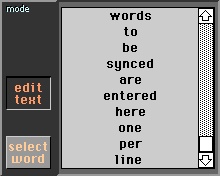
The Text Box
Has
one of 2 different functions depending on mode (see Modes
above). This
tool also has the buttons for selecting the mode. In
the current version of LipSync you cannot return to "edit
text" mode so it's important to set the frame rate and enter
all the words to be synced before going to "select word"
mode. In
"select word" mode you click on a word here to load it into
the word editor.
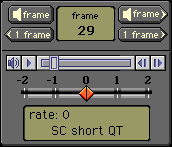
Quicktime Tool
As
well as the standard Quicktime controller there is a rate
slider that lets you continuously vary the speed of the
soundtrack as it plays - like a shuttle control. There are
also buttons to step one frame forward or back and to play
the current frame. There is also a button that steps to the
next frame and plays it. You can click on this repeatedly to
hear the soundtrack played in a series of one frame bursts.
A handy way to find word start and end. This tool also has
displays for frame number, playing rate and the name of the
Quicktime file.
Mouth Palette
A
palette of nine mouths. If you click on a mouth it is
assigned to the first blank frame of any word loaded into
the word editor. You can also drag a mouth to any frame
displayed in the word editor. Previewer Once
a word has its boundaries set it can be spoken by
the Previewer. Once it has mouth positions assigned
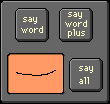
you can see it spoken. This tool has a mouth
display and buttons to: say
word - just the frames of the word are
spoken say
word plus - the word with a bit of pre-roll and
post-roll say
all - the whole soundtrack is played (you can
control the speed) and you see any words with
mouths assigned spoken.

Word Editor
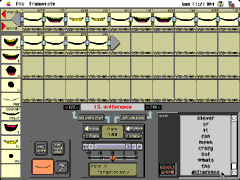
Displays one word at a time and shows the mouths assigned to each frame of the word. Also displays the word itself and the word's start and end frame numbers. Has buttons to set the word's first or last frame to the current frame. Also has buttons to go to the next or previous word.
The word
editor's frame display consists of a background display of 40 frames
of the soundtrack starting from the current word. The frames of the
current word are superimposed on this. You can play any frame in the
display by clicking on the waveform icon  at the bottom of that frame. This also sets this as the current
frame.
at the bottom of that frame. This also sets this as the current
frame.
The frame display can be manipulated directly. You can drag a mouth from the mouth palette to a displayed frame.
The
frames in a word are "linked" and have tabs at the front and
end. Clicking
an end tab moves all the linked frames one frame in that
direction. When
a frame is isolated a button appears above it that lets you
extract that frame and close up the frames on either
side. With
a frame isolated the end tabs move only the linked frames
... ...
and a new blank frame is inserted to fill the gap so words
can be stretched in either direction.


You can also click on a frame to isolate it from the frames on either
side.



Ways of working
Like any application that has a number of tools that interact, there are lots of ways of working that aren't immediately apparent. The tools can be used in various combinations. See the LipSync Tutorial for a typical session.